How to Find and Remove Duplicate Files on Mac, iPhone, and iPad
Duplicate files can build up quickly on Macs, iPhones, and iPads. Repeated downloads, exported documents, copied photos, and backup folders often leave identical files scattered across different locations. Over time, those extra copies can waste a surprising amount of storage.
If you want a dedicated way to clean this up, Zero Duplicates helps you locate and remove duplicate files on macOS, iOS, and iPadOS. Instead of relying only on filenames, it compares the actual file content, which means it can detect duplicates even when files have different names or sit in different folders.
The app is free to download from the App Store. You can run unlimited scans and delete up to 500 MB of duplicate files for free before a paid upgrade is required. That makes it easy to test the workflow on your own files first.
Add folders and start the scan
When you open the app for the first time, the workspace starts empty. Add folders with the Add Folder button or by dragging and dropping them into the window.
After you add a folder, a dialog shows the selected directory. On macOS, you can expand the folder tree and exclude individual subfolders from the scan. This is useful if you want to skip backup archives, export folders, or temporary files.
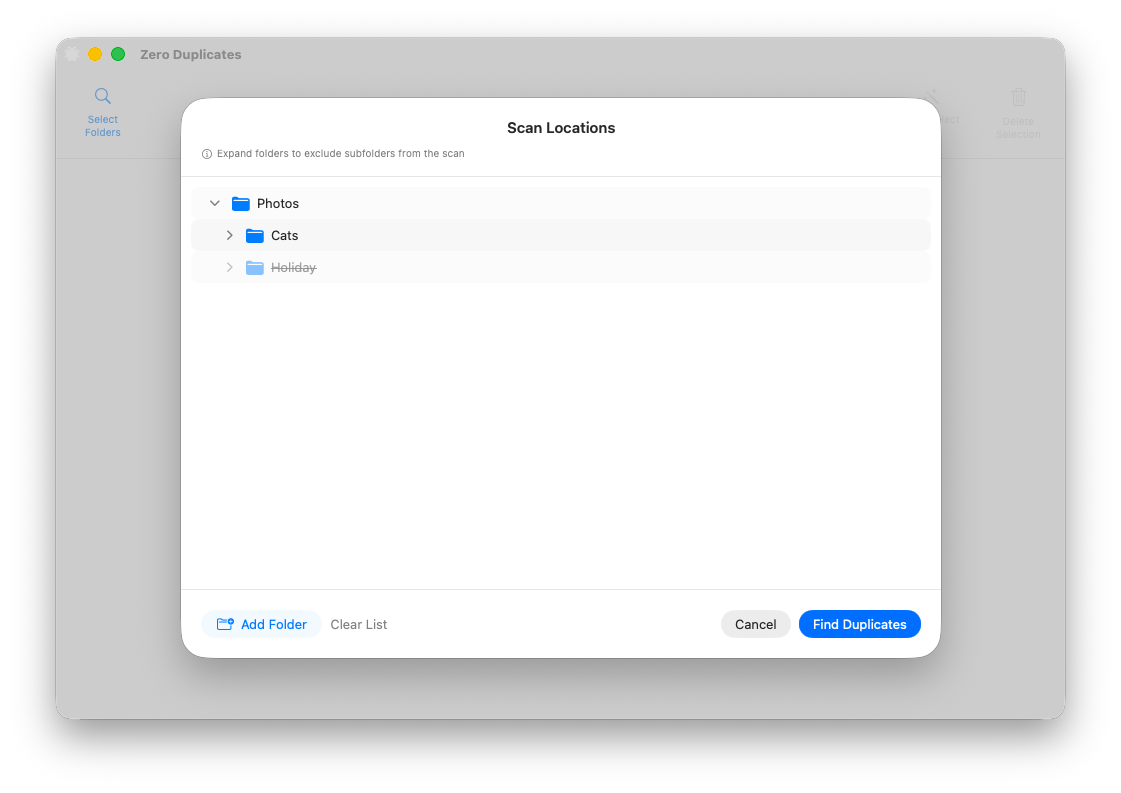
Once your folders are in place, click Find Duplicates to start scanning. You can scan multiple folders at the same time, which makes it possible to compare files across separate directories or even different drives.
Review duplicate results
After the scan completes, the app shows duplicate groups made up of files with identical content. You can inspect each group individually, and the built-in preview helps you verify what you are looking at before removing anything.
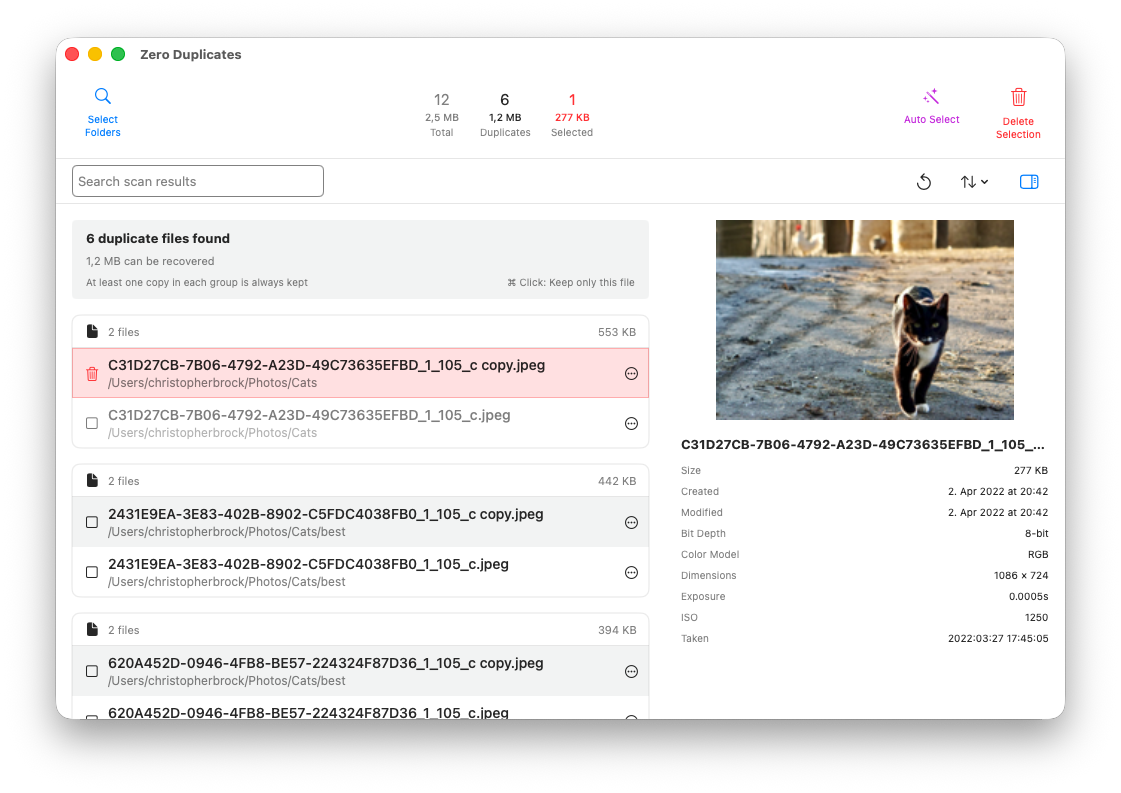
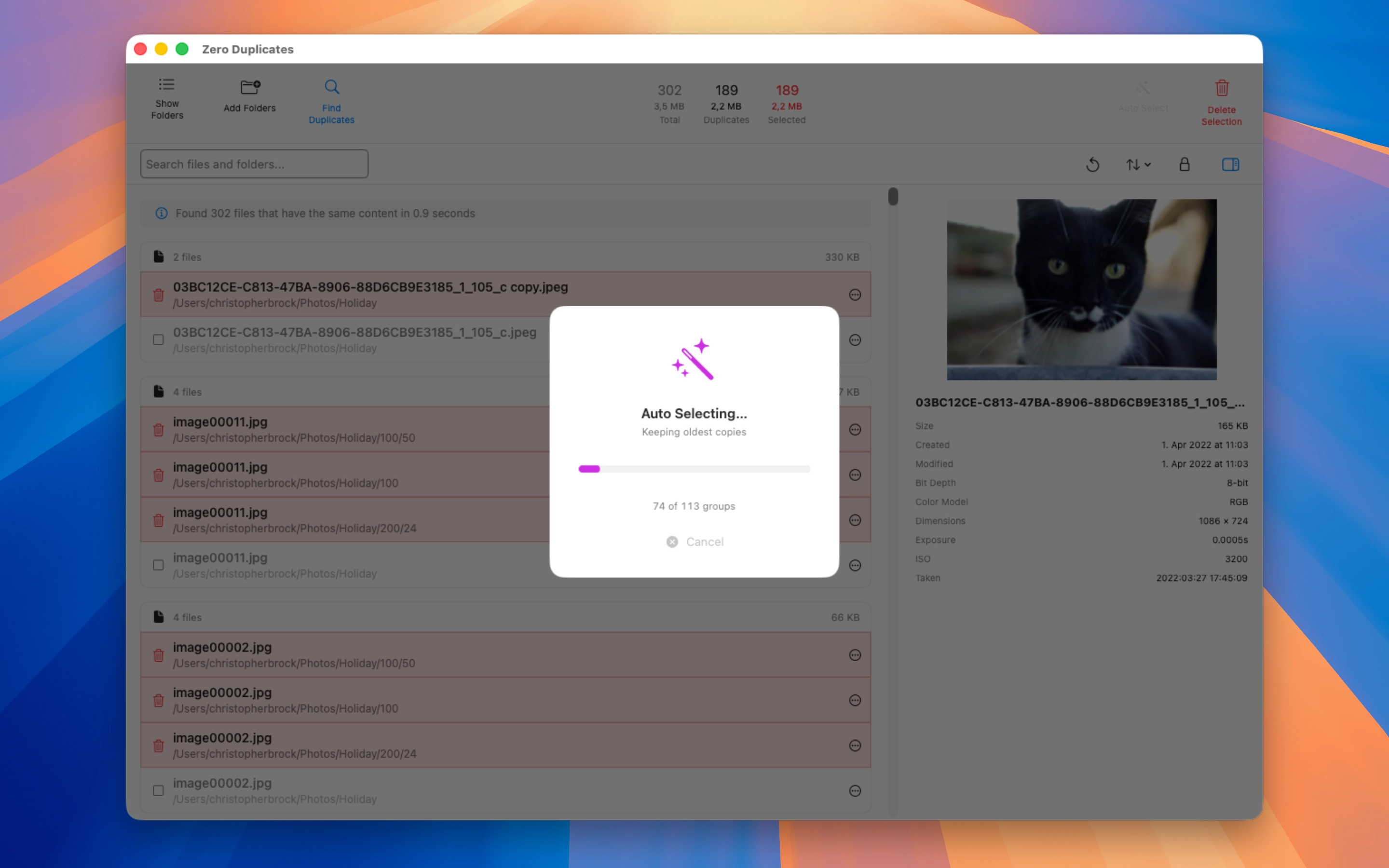
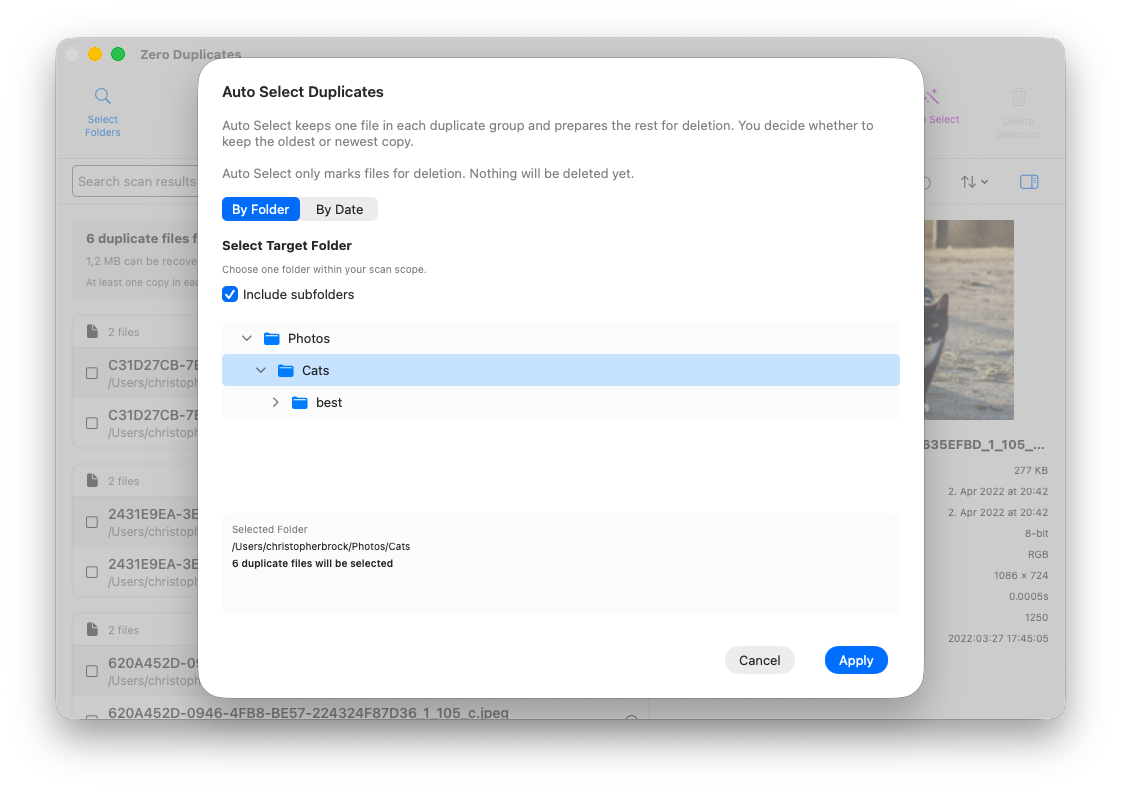
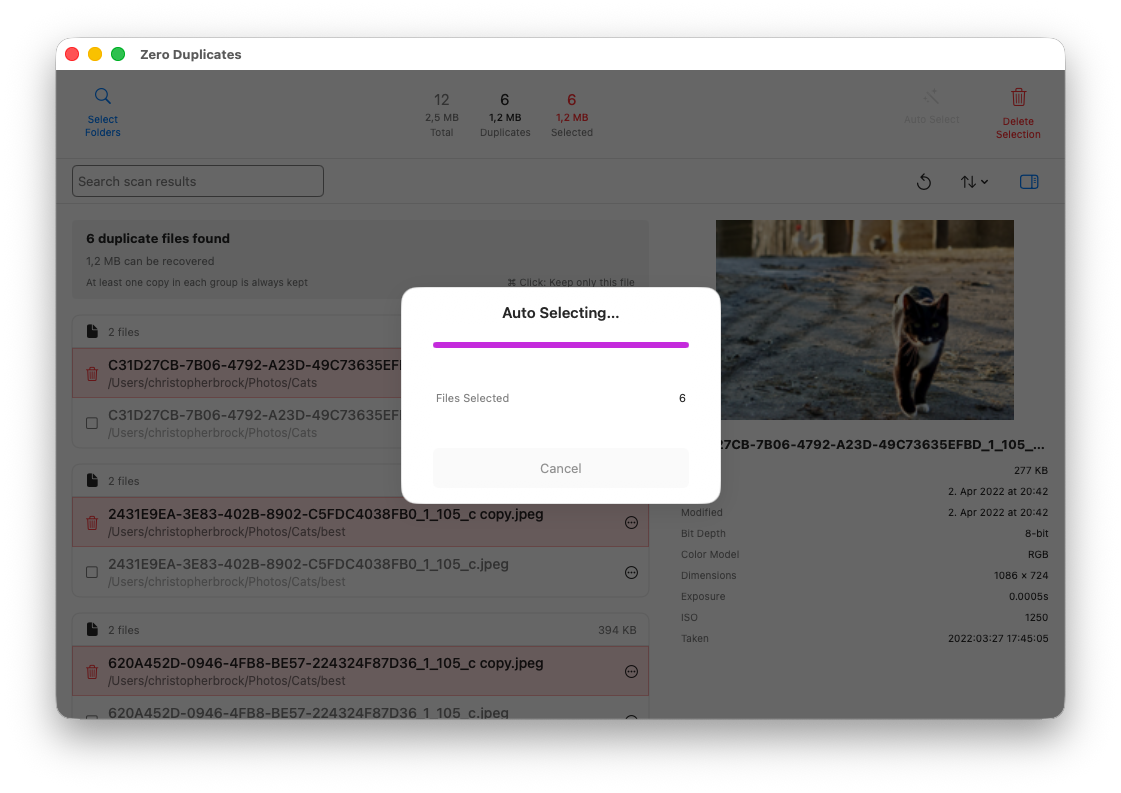
To speed up cleanup, Zero Duplicates includes an Auto Select feature. One option automatically selects duplicates inside a chosen folder or subfolder. That is helpful when duplicates are spread across several locations but you already know which folder should keep the preferred copy.
You can also auto-select by file date. In that mode, the app keeps either the oldest or newest file in each duplicate group and marks the remaining copies for deletion.
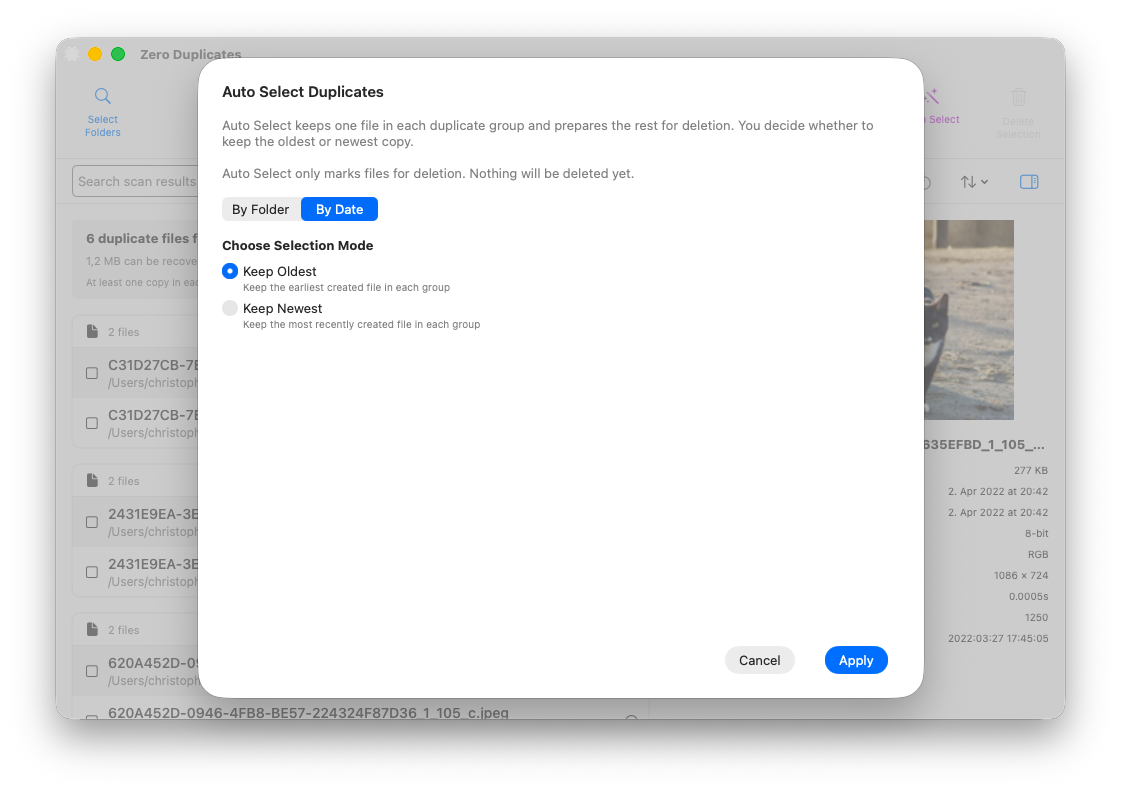
When you click Apply, the files are not deleted immediately. They are only marked for removal so you can review the selection before taking the final step.
If you want a deeper walkthrough of this part of the workflow, see A Fast and Safe Way to Delete Duplicate Files on Mac, iPhone, and iPad.
Delete duplicates safely
One of the most important safeguards is that at least one file is always preserved in each duplicate group. If five identical files are found, only four can be selected for deletion. This reduces the risk of removing every copy by mistake.
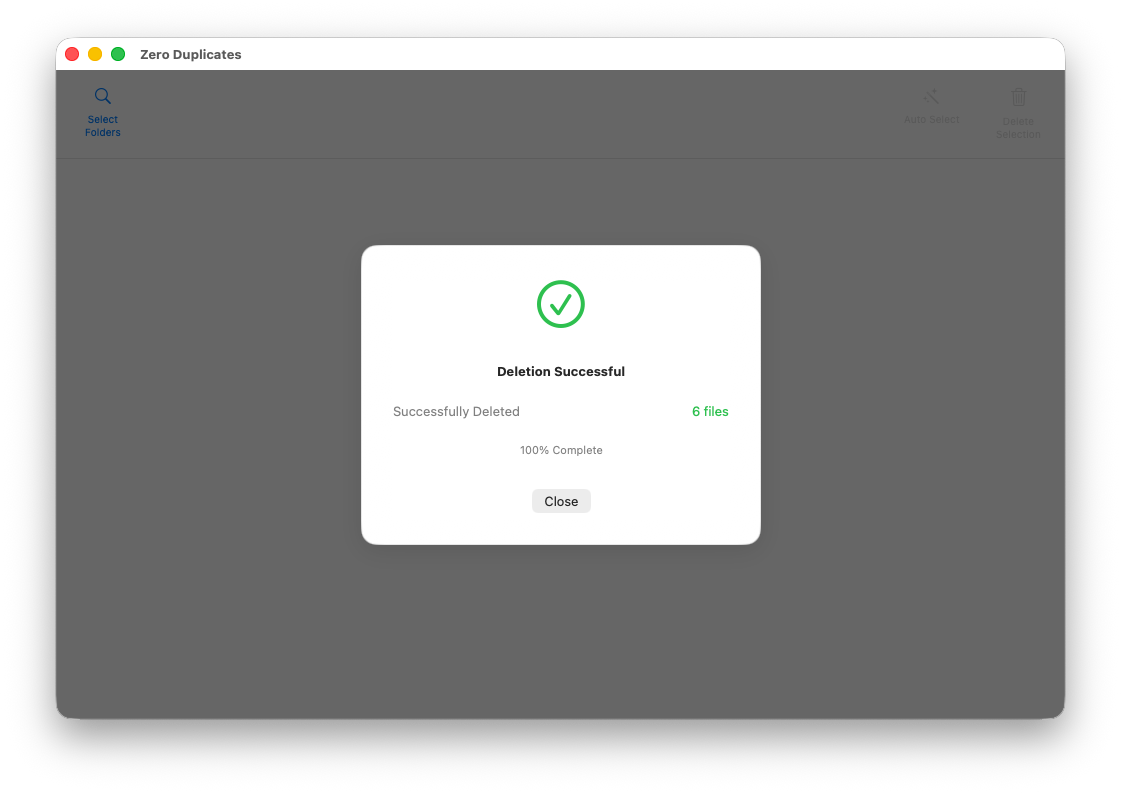
After reviewing the marked files, click Delete Selection to open the deletion options. On supported drives, you can choose between Move to Trash and Permanently Delete.
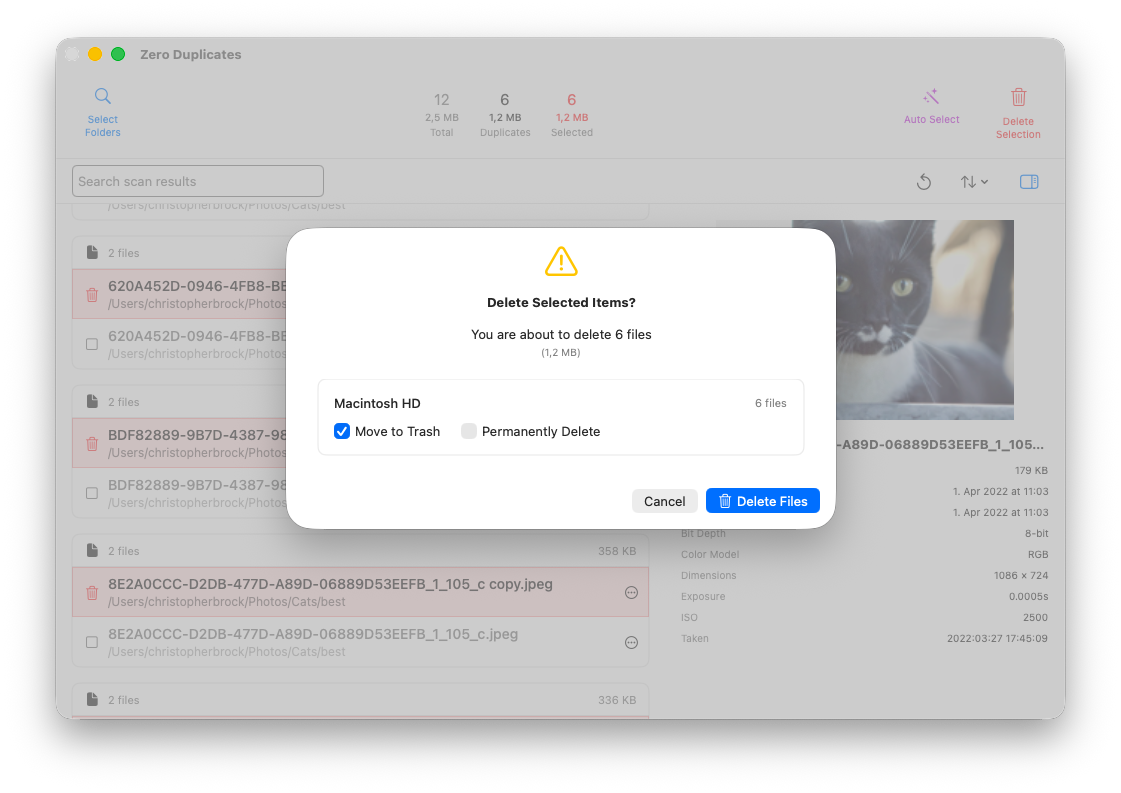
If you move files to the Trash, they can still be restored later if needed. Because macOS does not provide a built-in way to track the original location of trashed files, Zero Duplicates records where removed files came from to make restoration easier.
Extra scan options worth knowing about
The app also includes a few settings that help you fine-tune scans.
On macOS, Also include package contents is turned off by default. That prevents scans from going inside app bundles and other package-style folders unless you explicitly want that behavior. The Mac version can also ignore specific filename patterns, which helps exclude temporary or automatically generated files.
Across all platforms, you can also define a maximum file size to include in scans.
What differs between Mac, iPhone, and iPad?
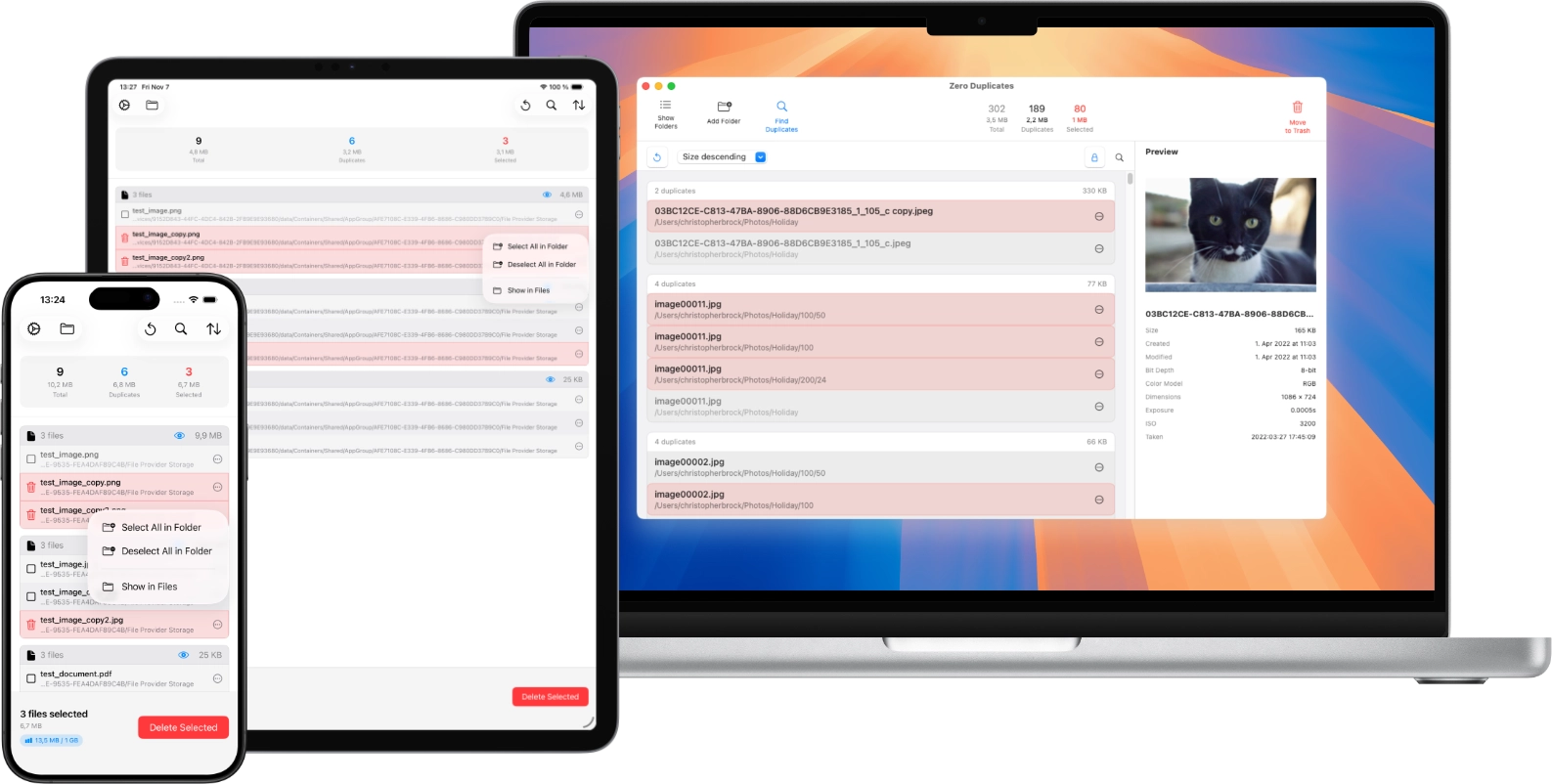
The screenshots above come from the macOS version, but the overall workflow is similar on iPhone and iPad as well.
There are a few platform differences to keep in mind:
- Excluding individual subfolders during scan setup is currently available only on macOS.
- On iPhone and iPad, automatic selection currently supports date-based selection.
- On iOS and iPadOS, files can only be permanently deleted because these systems do not offer a traditional Trash system for third-party apps.
All file analysis happens locally on your device. No file content is uploaded to external servers.
Final thoughts
If duplicate files keep eating up storage on your Apple devices, the safest approach is to review them in groups, keep one confirmed copy, and remove only the extras. That gives you more free space without losing the version you actually want.
Zero Duplicates is available for Mac, iPhone, and iPad, and it keeps the cleanup process simple by comparing real file content instead of filenames alone. You can learn more at zeroduplicates.com or download it below.
Clean Up Duplicate Files Faster
Zero Duplicates is free to download, supports unlimited scans, and lets you delete up to 500 MB of duplicate files for free before an upgrade is required. It is a simple way to review duplicate files safely and reclaim storage on your Apple devices.