Find & Remove Duplicate Files on External Drives (Mac)
External drives fill up faster than you expect. Between Time Machine backups, photo imports, and file transfers, duplicates accumulate without you noticing.
This guide shows you how to find and remove duplicate files on Mac external drives, with specific tips for external storage challenges.
Why Duplicates Accumulate on External Drives
Understanding how duplicates form helps you prevent them later. Here are the most common causes:
Drag-and-drop behavior: When you drag files between different drives, macOS copies them by default rather than moving them. Dragging within the same drive moves files instead. This difference catches many users off guard.
Time Machine backups: If you use the same external drive for Time Machine backups from multiple Macs, each Mac creates its own backup set. This can consume significant space with overlapping files.
Media app imports: Apps like Final Cut Pro can duplicate media files when you copy items between libraries, especially if you’re not using the “Move” option.
Pre-Scan Checklist for External Drives
Before scanning your external drive for duplicates, prepare your Mac to avoid interruptions:
-
Prevent drive sleep: Open System Settings > Battery, click “Options…” at the bottom, and make sure automatic sleeping is turned off.
-
Verify the drive is mounted: Check Finder’s sidebar to confirm your external drive appears and is accessible.
-
Close file-locking apps: Quit Photos, Lightroom, Final Cut Pro, or any app that may lock files on your external drive.
-
Check available space: Ensure you have enough free space to safely delete duplicates. If your drive is nearly full, free up storage on your Mac first.
How to Find Duplicate Files on External Drives
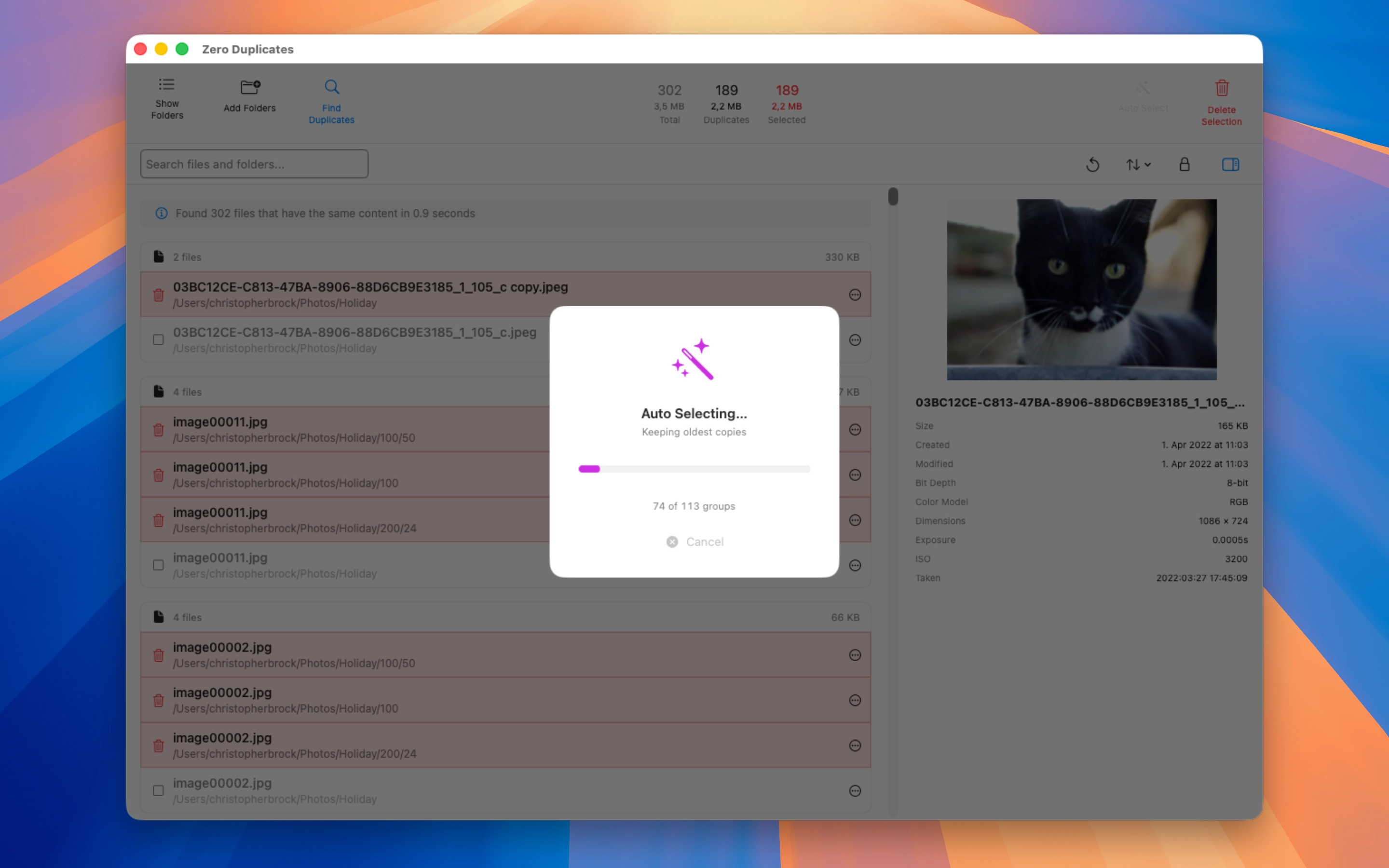
Zero Duplicates scans external drives by comparing actual file content, not filenames. This means it finds duplicates even when files have different names.
- Download and open Zero Duplicates
- Click “Scan Folder” and select your external drive
- Click “Find Duplicates” to start the analysis
- Review the results grouped by duplicate sets
The app shows you exactly how much space each duplicate set consumes, helping you prioritize what to delete first.
Safe Deletion Best Practices
Deleting duplicates from external drives requires extra care:
Review before deleting: Always preview files before removal. For photos and videos, verify you’re keeping the version you want.
Use Auto Select strategically: Zero Duplicates’ Auto Select feature can mark duplicates instantly while keeping your oldest or newest copies. This saves time on large scans.
Empty Trash completely: After deleting duplicates, empty your Trash. Space may not free up immediately. If it doesn’t, restart your Mac.
Verify space recovery: Check your external drive’s available space in Finder after deletion to confirm the cleanup worked.
Preventing Future Duplicates
Once you’ve cleaned up your external drive, these habits help prevent duplicates from returning:
Use Move instead of Copy: Hold Command while dragging files between drives to move them instead of copying. Or use Command+C to copy, then Command+Option+V to move (paste and delete original) for explicit move operations.
Organize Time Machine backups: If you back up multiple Macs to one external drive, consider using separate drives or partitions for each Mac. This reduces confusion and duplicate backup sets.
Set up Time Machine correctly: Configure Time Machine to exclude folders you don’t need backed up, like Downloads or temporary files.
Regular scans: Schedule monthly duplicate scans of your external drives, especially if you frequently transfer large files or media libraries.
Conclusion
External drives accumulate duplicates through normal use. Drag-and-drop transfers, Time Machine backups, and media imports all contribute. By understanding these causes and following the pre-scan checklist, you can safely reclaim storage space.
Zero Duplicates makes the cleanup process straightforward by comparing file content and showing you exactly what’s safe to delete. Combined with prevention habits like using Move operations and organizing Time Machine backups, you can keep your external drives efficient and clutter-free.
Optimize Your Mac’s Storage
Looking for more ways to free up space? Zero Duplicates helps you identify and remove duplicate files that consume unnecessary storage. It is a simple, effective way to reclaim disk space and keep your Mac organized.