How to Create Custom Focus Modes on iPhone and Mac
Focus modes help you stay present by filtering notifications and customizing your device experience based on what you’re doing. Whether you’re working, sleeping, or spending time with family, I’ll show you how to create Focus modes that match your needs.
Quick Start: Create Your First Focus Mode
Here’s how to set up a basic Focus mode in five steps:
- Open Settings on your iPhone (or System Settings on Mac)
- Tap Focus
- Tap the + button and choose a Focus type (or select Custom)
- Name your Focus and choose an icon
- Tap Done
You’ve created your first Focus mode. Now let’s customize it.
Customize Notifications and Apps
Focus modes let you control which apps and people can reach you:
- In Settings > Focus, tap your Focus mode
- Under Allow Notifications, tap Apps or People
- Select which apps or contacts can send notifications
- Toggle Time Sensitive Notifications if you want urgent alerts to break through
Tip: Start with a short allowed list. It’s easier to add apps later than to figure out which ones are distracting you.
Set Up a Custom Home Screen
You can show different home screen pages when a Focus mode is active:
- Long-press an empty area on your home screen
- Tap the page dots at the bottom
- Check the pages you want visible during this Focus
- Tap Done
To link this to your Focus mode:
- Go to Settings > Focus and select your Focus
- Scroll to Customize Screens
- Tap Choose and select your home screen setup
This keeps work apps visible during Work Focus and hides them during Personal Time.
Add Focus Filters
Focus Filters let you adjust system settings when a Focus activates. Available filters include:
- Dark Mode: Switch to dark appearance
- Low Power Mode: Conserve battery automatically
- Always On Display: Dim or turn off the always-on screen (iPhone 14 Pro and later)
- Silent Mode: Mute all sounds
To add a filter:
- In your Focus settings, tap Add Filter
- Choose a system setting or app
- Configure how it should behave during this Focus
Note: Focus Filters don’t sync across devices, even when Share Across Devices is enabled. You’ll need to set them up separately on each device.
Automate with Schedules and Locations
Focus modes can turn on automatically based on time or place:
Time-Based Automation
- In your Focus settings, tap Add Schedule
- Select Time
- Set your start and end times
- Choose which days to repeat
Location-Based Automation
- Tap Add Schedule
- Select Location
- Choose Arriving or Leaving
- Search for and select your location
Tip: Keep automation rules simple to maintain predictable behavior.
Three Ready-to-Use Focus Workflows
Work Focus
What to set up:
- Allow notifications from: Work email, calendar, Slack, and your manager’s contact
- Block: Social media apps, personal messaging
- Home screen: Show only productivity apps
- Schedule: Monday-Friday, 9 AM to 5 PM
Sleep Focus
What to set up:
- Allow notifications from: Selected important contacts only
- Block: All apps except Phone (for emergency calls)
- Filters: Enable Dark Mode, turn on Silent Mode
- Schedule: Daily, 10 PM to 7 AM
Personal Time Focus
What to set up:
- Allow notifications from: Family and close friends
- Block: Work email, Slack, LinkedIn
- Home screen: Show entertainment and personal apps
- Location: Activate when arriving home
Sync Across Your Devices
To use the same Focus modes on your iPhone, iPad, and Mac:
- Go to Settings > Focus
- Tap Share Across Devices
- Toggle it on
Your Focus modes will now activate on all your Apple devices simultaneously.
Apple Intelligence Reduce Interruptions Focus
If you have a device with Apple Intelligence (iPhone 15 Pro or later, iPad with M1 or later, Mac with Apple silicon), you can use the Reduce Interruptions Focus. This mode uses AI to filter notifications, allowing only potentially important ones through.
Reduce Interruptions requires iOS 18.1 or later, iPadOS 18.1 or later, or macOS 15.1 or later.
To enable it, select Reduce Interruptions when creating a new Focus mode.
What Syncs and What Doesn’t
When Share Across Devices is enabled:
Syncs:
- Focus mode on/off state
- Allowed apps and contacts
- Home screen configurations
- Automation schedules
Doesn’t sync:
- Focus Filters (Dark Mode, Low Power Mode, etc.)
You’ll need to configure filters separately on each device.
Optimize Your Mac’s Storage
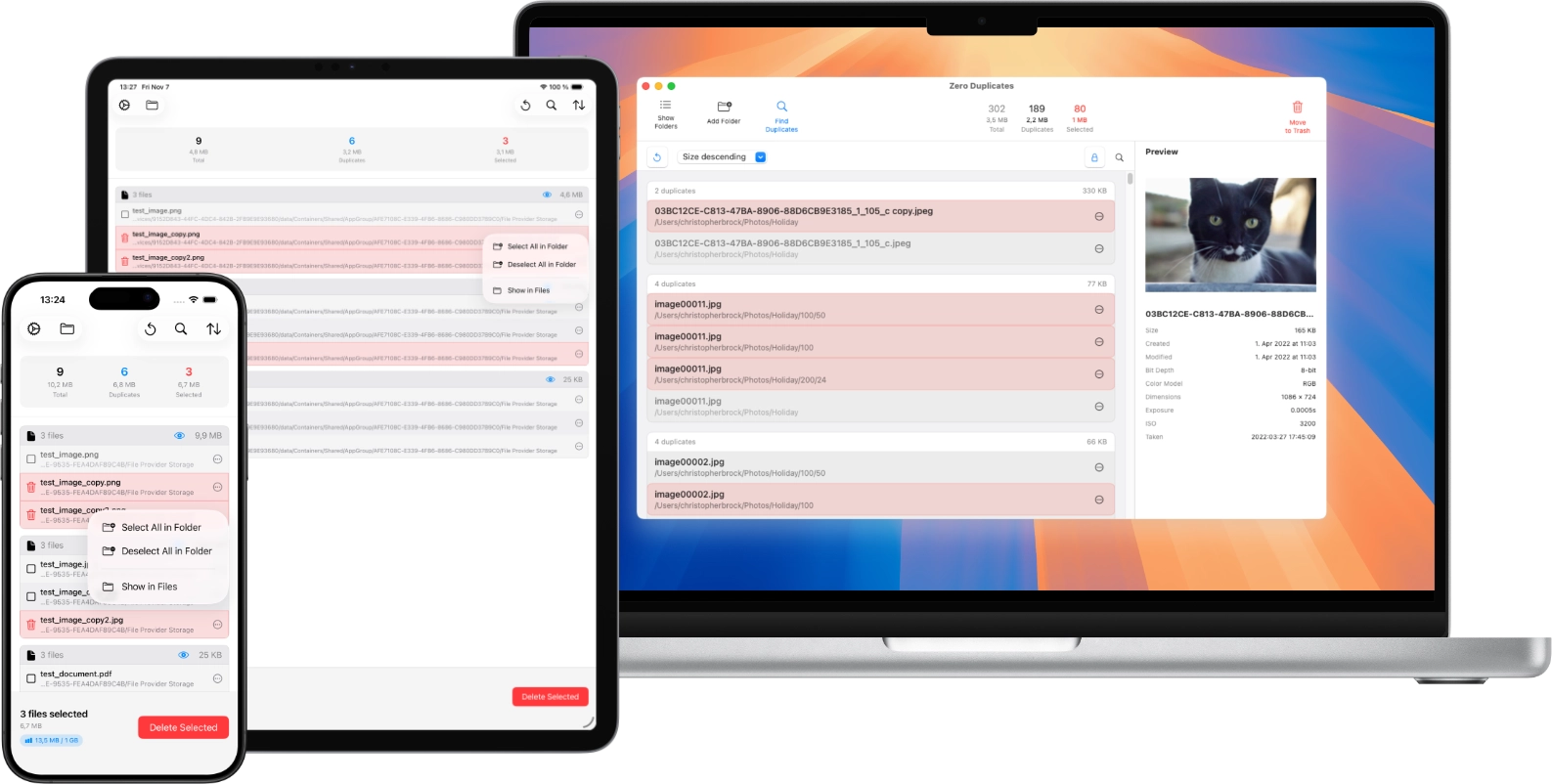
Looking for more ways to free up space? Zero Duplicates helps you identify and remove duplicate files that consume unnecessary storage. It is a simple, effective way to reclaim disk space and keep your Mac organized.