AirDrop Not Working? Fix Connectivity Issues Fast

AirDrop makes sharing files between your Apple devices incredibly easy, but when it stops working, it can be frustrating. If your devices won’t connect, transfers get stuck on “Waiting,” or AirDrop just won’t show up, I’ll walk you through the most effective fixes.
Quick Checklist: Start Here
Before diving into specific problems, verify these basics:
- Bluetooth and Wi-Fi are on (both devices)
- Personal Hotspot is off (it prevents AirDrop from working)
- Devices are within 30 feet of each other
- Low Power Mode is off (iPhone/iPad)
- AirDrop is set to “Everyone” or “Contacts Only” (not “Receiving Off”)
These five settings resolve most AirDrop issues. If you’re still having trouble, identify your specific problem below.
Device Not Showing Up
If the receiving device doesn’t appear in your AirDrop list:
On iPhone/iPad:
- Open Control Center
- Press and hold the connectivity controls (top left group)
- Tap AirDrop and select Everyone for 10 Minutes
On Mac:
- Open Finder
- Click AirDrop in the sidebar
- At the bottom, change Allow me to be discovered by to Everyone
Still not visible? Try these:
- Restart both devices
- Sign out and back into iCloud on both devices
- Check that both devices are using the same Apple ID (for “Contacts Only” mode)
Transfer Stuck on “Waiting”
If AirDrop starts but never completes:
- Cancel and retry (tap the transfer notification, then Cancel)
- Toggle Airplane Mode on both devices (on for 5 seconds, then off)
- Restart Bluetooth and Wi-Fi (turn off, wait 10 seconds, turn back on)
- Move devices closer together (within 10 feet)
For Mac-to-Mac transfers, also try:
- Quit and reopen Finder
- Check storage space on the receiving Mac
Transfer Declined or Failed
If transfers are rejected or fail immediately:
Check receiving device settings:
- Make sure the screen is unlocked and awake
- Verify AirDrop is set to accept from “Everyone” or “Contacts Only” (not “Receiving Off”)
- Confirm you’re tapping Accept when the prompt appears
For “Contacts Only” mode:
- Both devices must have each other’s Apple ID email or phone number saved in Contacts
- The contact card must match exactly what’s in iCloud
Slow Transfer Speeds
If AirDrop works but takes too long:
- Move devices closer together
- Remove obstacles (walls, metal objects, other electronics)
- Close unnecessary apps on both devices
- Turn off Personal Hotspot (it prevents AirDrop from working properly)
- Disable Low Power Mode on iPhone/iPad
For large file transfers (photos, videos), consider using a cable connection or consolidating files on one device first.
Reset Network Settings (Last Resort)
If nothing else works, reset network settings:
On iPhone/iPad:
- Go to Settings > General > Transfer or Reset iPhone/iPad
- Tap Reset > Reset Network Settings
- Enter your passcode and confirm
On Mac:
- Open System Settings > Network > Wi-Fi
- Click Details next to your Wi-Fi network
- Click Forget This Network
- Reconnect to your Wi-Fi
Note: This will erase saved Wi-Fi passwords, so have them ready.
When to Use Alternative Methods
If AirDrop continues to fail:
- iCloud Drive: Upload files to iCloud, download on the other device
- Messages: Send files via iMessage
- Email: For smaller files
- Cable transfer: Connect iPhone/iPad to Mac with USB-C or Lightning cable
These methods work reliably when AirDrop doesn’t cooperate.
Optimize Your Mac’s Storage
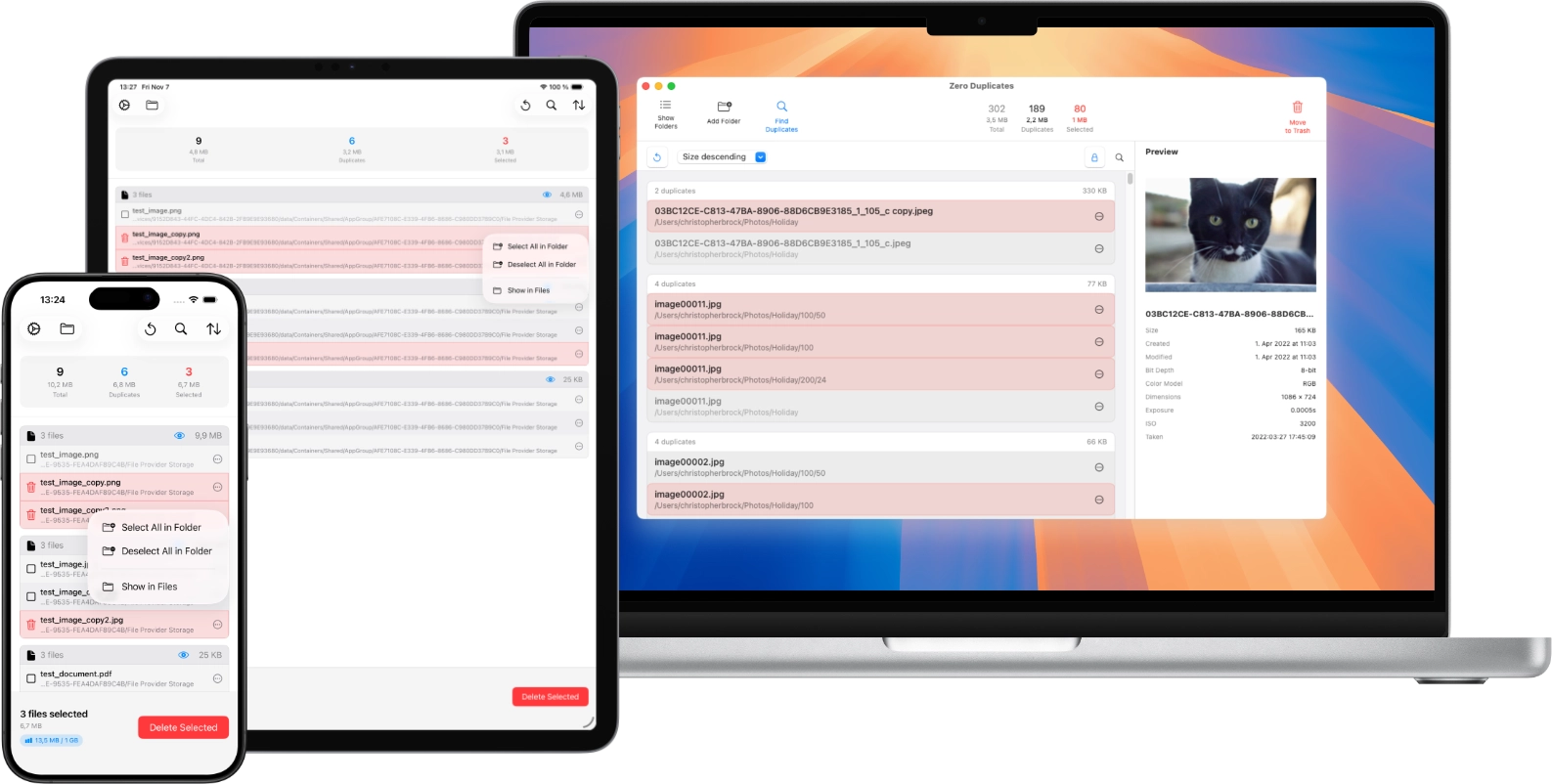
Looking for more ways to free up space? Zero Duplicates helps you identify and remove duplicate files that consume unnecessary storage. It is a simple, effective way to reclaim disk space and keep your Mac organized.