The Duplicate File Finder for iPhone (Files App)
If you searched for a duplicate file finder for iPhone, chances are you found a dozen “duplicate cleaner” apps and every single one only touches your Photos library. That’s not a coincidence. Almost every app in this category is a photo cleaner, and duplicate files, PDFs, documents, and downloads sitting in the Files app are a completely different problem that most of these apps never address.
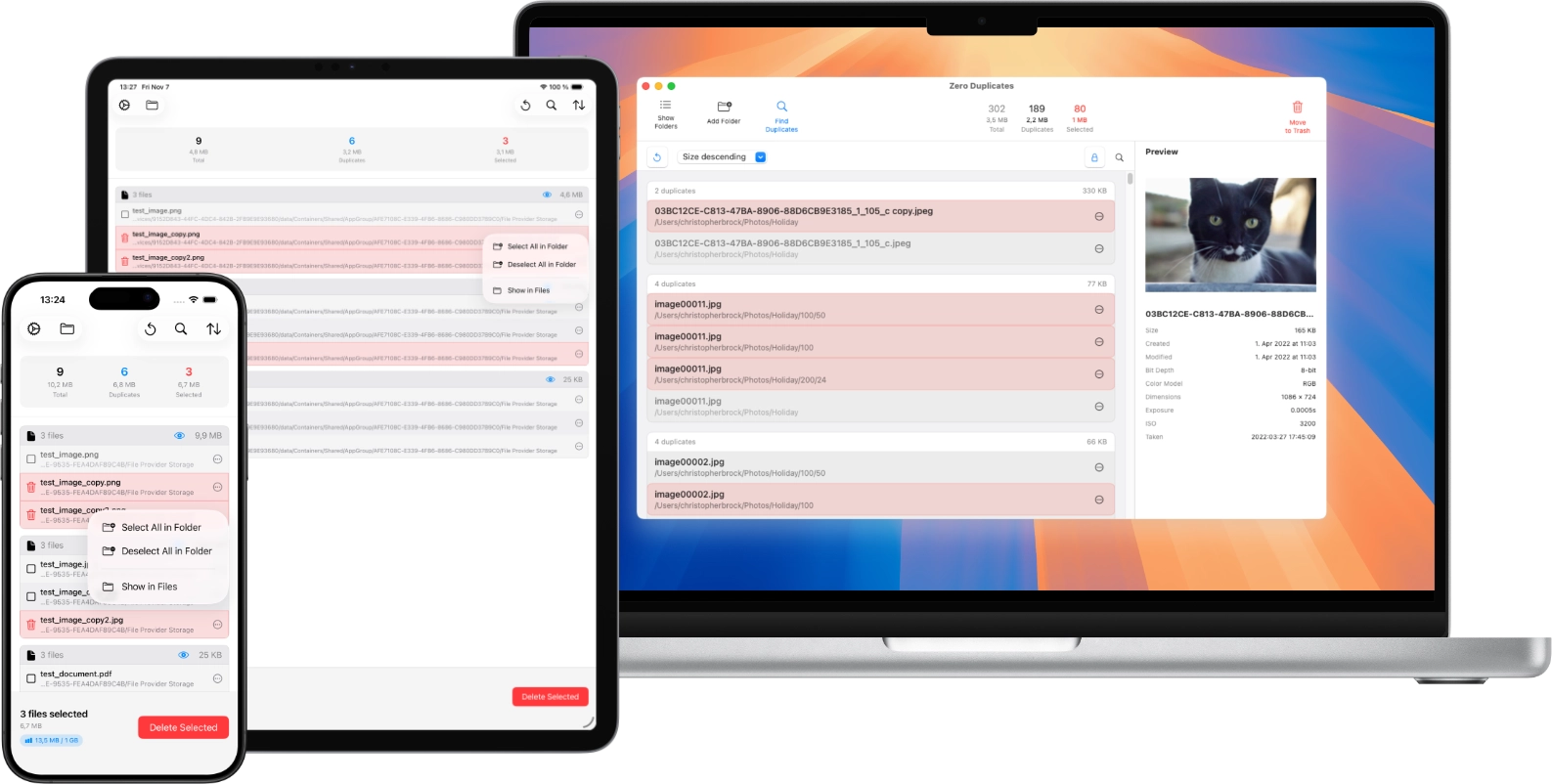
Zero Duplicates for iOS is built specifically for that gap. It compares actual file content across the locations your iPhone or iPad can reach through the Files app, so it can catch duplicate PDFs, Word docs, spreadsheets, and downloads even when they’ve been renamed. Here’s an honest look at what actually works, and why.
Why Photo Cleaner Apps Don’t Find Duplicate Files
Apps like MacPaw’s CleanMy®Phone (formerly Gemini Photos) and most generic “cleaner” apps are scoped to the Photos library. That’s a separate storage system from the Files app, and it doesn’t include the PDF someone AirDropped you, the invoice you downloaded twice, or the export sitting in iCloud Drive. If your storage problem is a cluttered Downloads folder rather than a camera roll full of near-duplicate shots, a photo cleaner simply won’t see the files causing it.
What Apple’s Photos Duplicates Album Actually Covers
Starting with iOS 16, the Photos app includes a native Duplicates album that finds and merges duplicate photos and videos. It works well for what it does, but it’s scoped to the Photos library only, and Apple notes the album may not appear at all if no duplicates are detected. It has no visibility into documents, PDFs, or anything stored in the Files app.
Why There Aren’t More File Duplicate Scanners on iOS
This is the part most articles skip. iOS sandboxing means a third-party app can’t scan your entire device the way a duplicate finder can on a Mac. Apps only get access to files you explicitly expose through the document picker or Files integration, meaning iCloud Drive, On My iPhone/iPad, connected USB or SD storage, and third-party cloud apps that plug into Files. That’s genuinely why real file-duplicate scanners for iOS are rare: building one within those constraints takes real work, and it’s much easier to ship another photo cleaner.
Zero Duplicates works within that same document-based access model. It scans the Downloads folder, iCloud Drive, On My iPhone/iPad storage, and external drives connected via adapter, checking documents, images, videos, and audio files by comparing their actual content rather than filenames. Everything happens on-device, with no upload required to detect matches.
What the Files App and Settings Can (and Can’t) Do
The Files app has no built-in duplicate detection, so sorting by name or date only helps if you already suspect where duplicates are hiding. Settings > General > iPhone Storage shows Apple’s storage recommendations, but it doesn’t identify duplicate files either, it just flags what’s using space. If you have access to a Mac, moving files there for a full scan with a tool like a dedicated Mac duplicate finder is another option, though that means round-tripping files off your iPhone first.
One thing worth knowing before you start: unlike the Mac, the iPhone has no Trash where deleted files wait to be restored. Duplicates you remove are deleted right away, so review your selection before confirming.
Getting Started
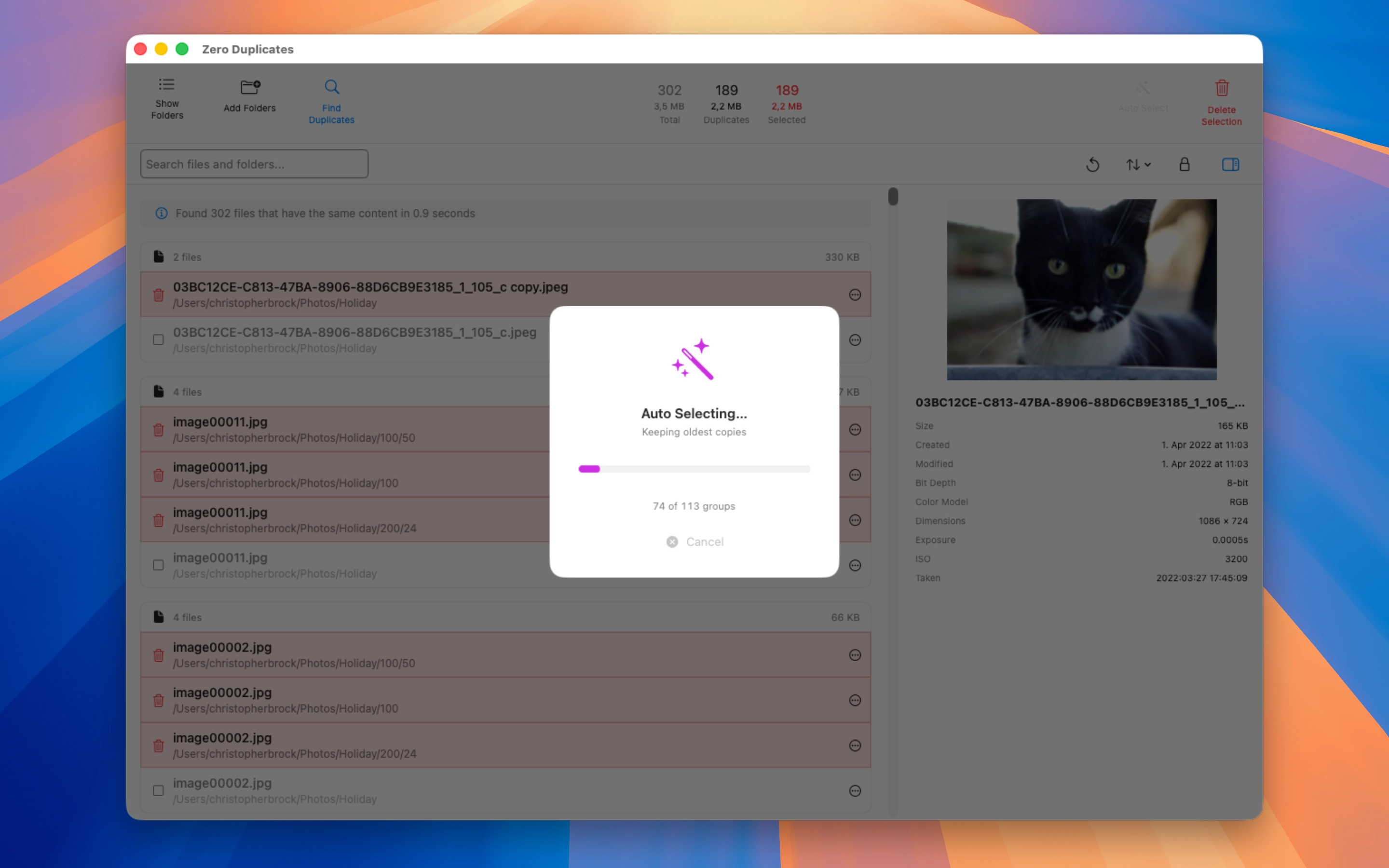
Zero Duplicates is free to download with unlimited scans, and you can delete a first batch of duplicates for free to see how it works on your own files. If you want to keep going, there are monthly, yearly, and lifetime options, with current prices listed on the App Store. For Auto Select and other ways to speed up cleanup, or a broader look at duplicate files across Mac, iPhone, and iPad, those guides go deeper.